20 Best Google Slides Templates for Professional Presentations

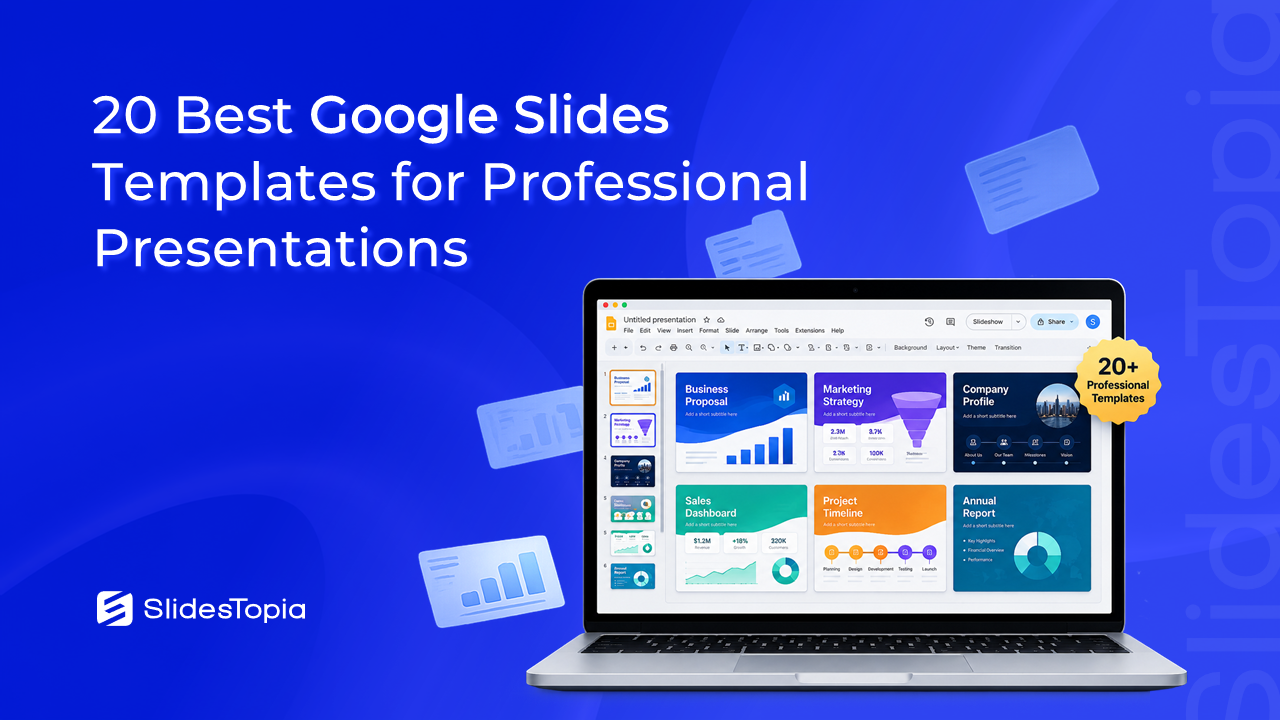


Creating a presentation from scratch can take hours, especially when you’re trying to balance design, content, and consistency. I’ve been in that situation more times than I can count. Sometimes the hardest part isn’t writing the presentation. It’s deciding how to present the information in a way that looks professional and keeps the audience engaged.
That’s where Google Slides templates make a difference.
A well-designed template gives you a solid starting point. Instead of worrying about layouts, fonts, colors, or alignment, you can focus on your message. Whether you’re preparing a business proposal, a sales presentation, a classroom lesson, or a startup pitch, the right template helps you present your ideas with confidence.
One reason I enjoy working with Google Slides is its simplicity. Everything is cloud-based, collaboration is effortless, and presentations can be accessed from almost any device. Even better, many PowerPoint templates are fully compatible with Google Slides, giving you access to thousands of professionally designed layouts.
In this guide, I’ve handpicked 20 of the best Google Slides templates for different presentation needs. Rather than listing random designs, I’ve chosen templates that are practical, visually appealing, and suitable for real-world business and educational presentations.
Why Use Google Slides Templates?
Google Slides has become one of the most popular presentation tools for professionals, students, educators, and businesses. While it’s easy enough to create slides from a blank canvas, using a professionally designed template saves time and improves the overall quality of your presentation.
Here are a few reasons why I almost always start with a template.
Save Hours of Design Work
Designing every slide individually can quickly become overwhelming. Templates provide ready-made layouts that let you focus on your content instead of formatting.
Maintain a Professional Look
A good presentation should feel consistent from beginning to end. Professional templates include matching colors, typography, icons, and layouts that create a polished appearance.
Collaborate Easily
Since Google Slides is cloud-based, it’s simple to share presentations with teammates and collect feedback in real time without sending multiple file versions.
Create Better Visual Stories
Templates often include timelines, process diagrams, comparison layouts, dashboards, infographics, and charts that make complex ideas easier to explain.
Work Across Devices
Whether you’re editing on a laptop, tablet, or phone, Google Slides keeps your presentation accessible wherever you need it.
How I Choose the Best Google Slides Templates
Not every presentation template deserves a place on this list. Some may look attractive but offer limited flexibility, while others include dozens of slides that are rarely useful.
When choosing templates, I look for a few key qualities.
Fully Editable Layouts
The best templates allow you to customize colors, fonts, icons, images, and layouts without breaking the overall design.
Versatile Slide Designs
A good presentation needs more than title slides. I look for templates that include timelines, comparison tables, process diagrams, data visualizations, team slides, pricing layouts, and conclusion slides.
Clean Visual Hierarchy
Good presentations guide the audience naturally through the content. Clear headings, balanced spacing, and thoughtful use of visuals make information easier to understand.
Business-Friendly Design
While creative presentations have their place, most professionals need templates that work well for meetings, client presentations, reports, and proposals.
Google Slides Compatibility
Every template on this list works well with Google Slides while maintaining compatibility with Microsoft PowerPoint for teams that use both platforms.
20 Best Google Slides Templates
1. Startup Pitch Deck Template
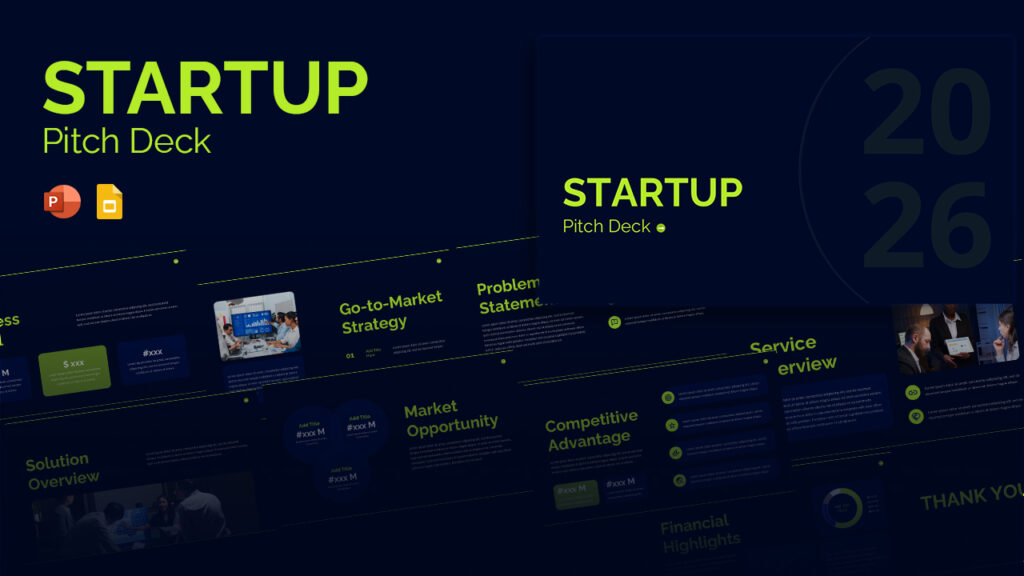
Best For: Startup founders, entrepreneurs, and investor meetings
A strong first impression is critical when presenting a new business idea. A startup pitch deck template typically includes slides for the problem, solution, business model, market opportunity, competitors, financial projections, and funding requirements.
I recommend this template for entrepreneurs who want to communicate their ideas clearly without spending days designing every slide.
Ideal Use Cases
- Investor presentations
- Startup competitions
- Business proposals
- Product launches
2. Company Profile Template

Best For: Corporate presentations and business introductions
Company profile presentations are useful whenever you need to introduce your organization to potential clients, partners, or investors.
A well-designed template includes company history, services, achievements, team members, mission, vision, and client testimonials in a structured format.
This is one of those templates that almost every business should have ready.
3. Business Proposal Template

Best For: Client proposals and service presentations
Whether you’re pitching marketing services, consulting, software development, or construction projects, a business proposal template helps organize your ideas into a persuasive presentation.
I particularly like proposal templates that include pricing tables, timelines, project scope, deliverables, and next steps.
4. SWOT Analysis Template

Best For: Strategic planning and business analysis
SWOT analysis remains one of the simplest ways to evaluate strengths, weaknesses, opportunities, and threats.
Instead of creating the matrix manually, this template provides a clean layout that makes strategic discussions easier during meetings and workshops.
5. Timeline Presentation Template
Best For: Project planning and business roadmaps
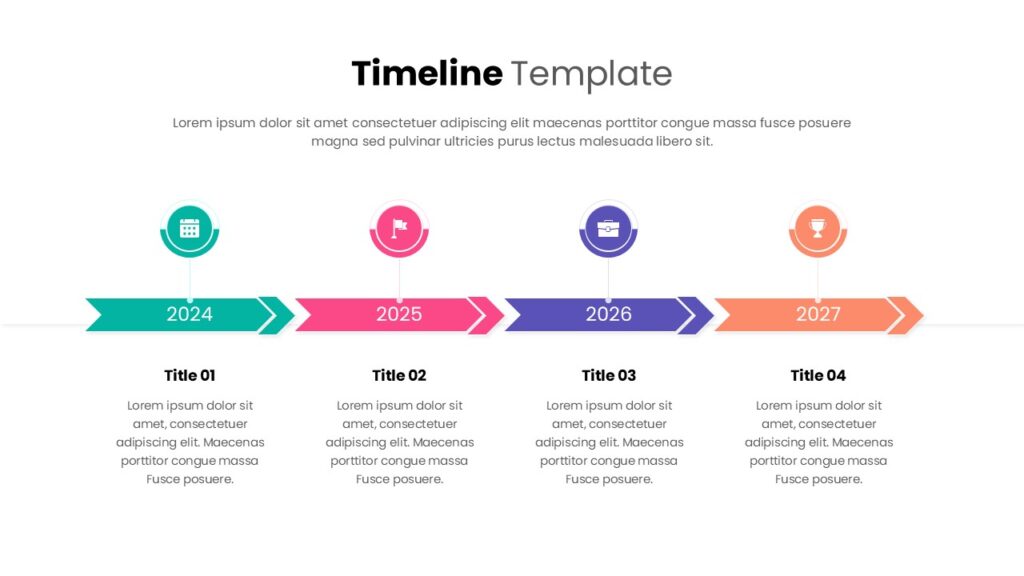
Timelines help audiences understand progress and future milestones at a glance.
Whether you’re presenting a product launch schedule, project roadmap, company history, or implementation plan, timeline templates make chronological information much easier to follow.
6. Process Flow Diagram Template
Best For: Explaining workflows and operational processes
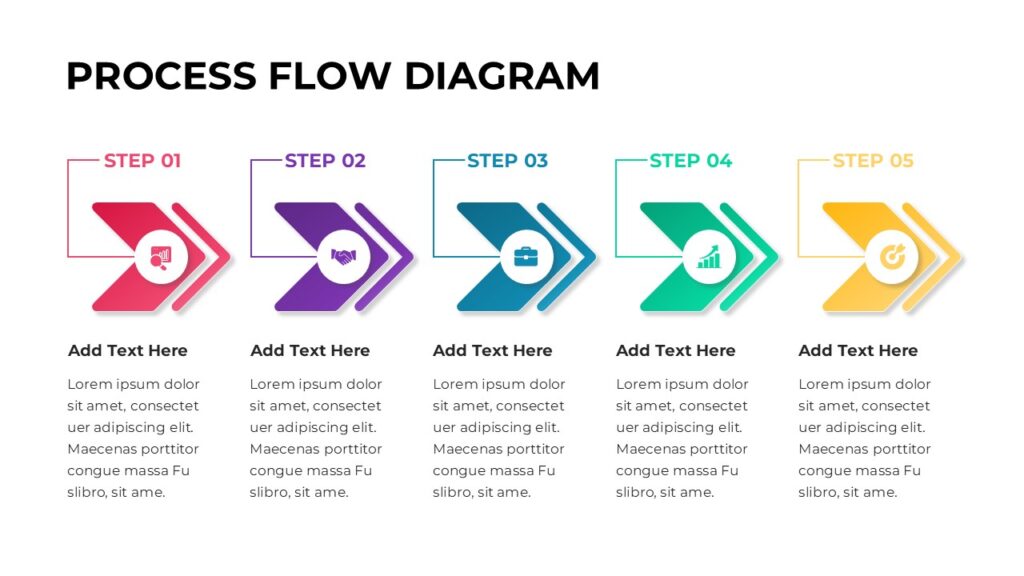
Whenever I need to explain how something works, I usually prefer a process diagram over paragraphs of text.
These templates simplify complicated workflows using connected steps, icons, and directional arrows that are easy to understand.
7. Marketing Strategy Presentation Template

Best For: Marketing teams and campaign planning
Marketing presentations often combine research, strategy, campaign planning, budgets, customer personas, and performance metrics.
A dedicated marketing template keeps all of this information organized while maintaining a modern and professional appearance.
8. Sales Presentation Template

Best For: Sales meetings and client presentations
Sales presentations should focus on customer problems, proposed solutions, benefits, proof, and clear calls to action.
A professionally designed sales template includes comparison slides, pricing sections, testimonials, product features, and implementation plans that help communicate value more effectively.
9. Project Status Report Template

Best For: Weekly updates and stakeholder meetings
Keeping stakeholders informed is much easier with a structured project status presentation.
I prefer templates that include progress dashboards, milestone tracking, risk summaries, completed tasks, upcoming activities, and project KPIs in one place.
10. Infographic Presentation Template
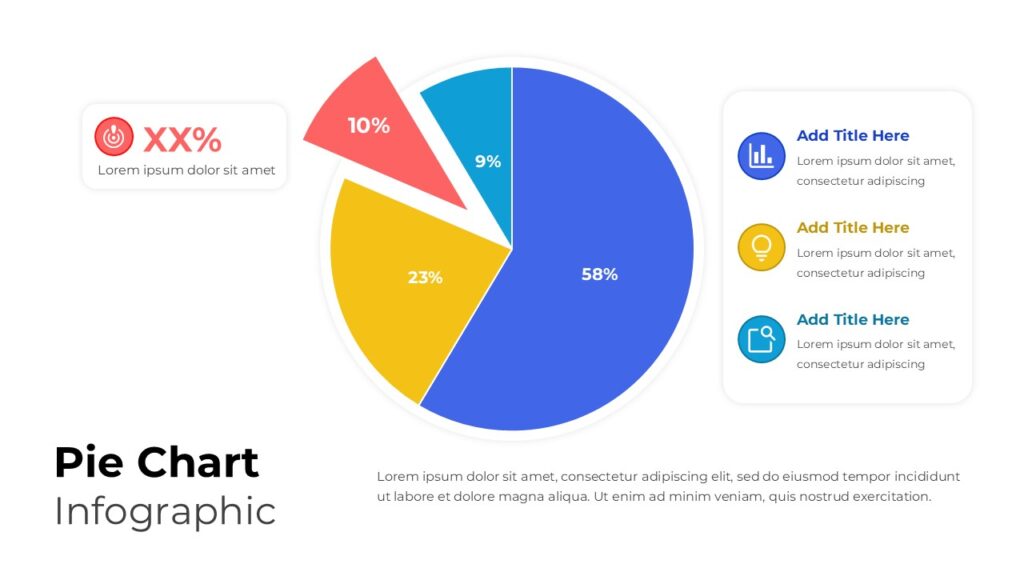
Best For: Data storytelling and educational presentations
Sometimes numbers alone aren’t enough. Infographic templates transform statistics into engaging visual stories using icons, charts, illustrations, and simple layouts.
They’re especially useful for annual reports, research presentations, classroom lessons, and marketing reports where visual communication matters more than lengthy explanations.
11. Roadmap Presentation Template
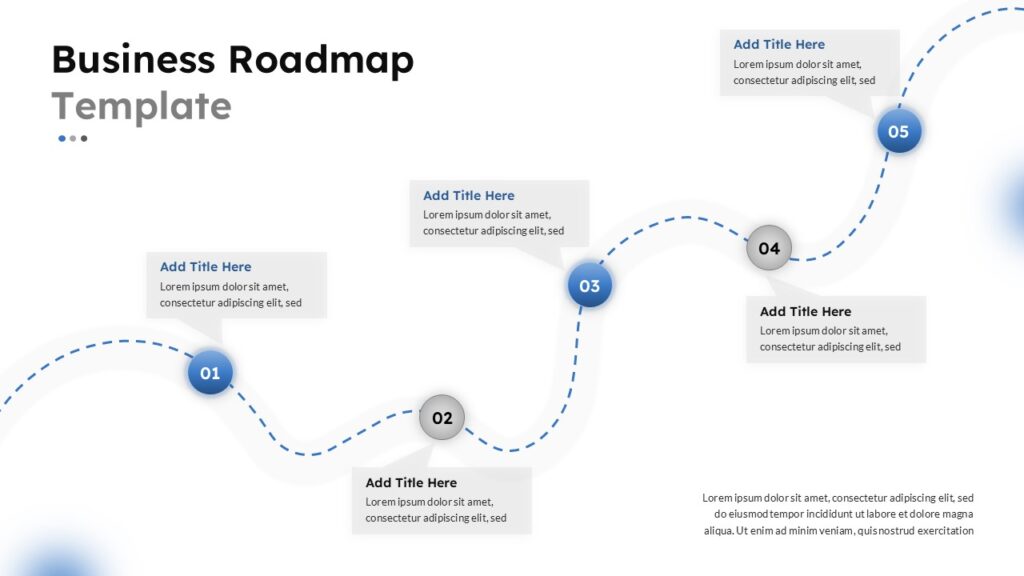
Best For: Product planning and strategic initiatives
Roadmap presentations are perfect for showing where a project, product, or business is heading. Instead of listing milestones in plain text, these templates organize future plans into a clear visual timeline.
I usually recommend roadmap templates for quarterly planning meetings, product launches, and executive presentations because they help everyone understand priorities at a glance.
12. Customer Journey Map Template
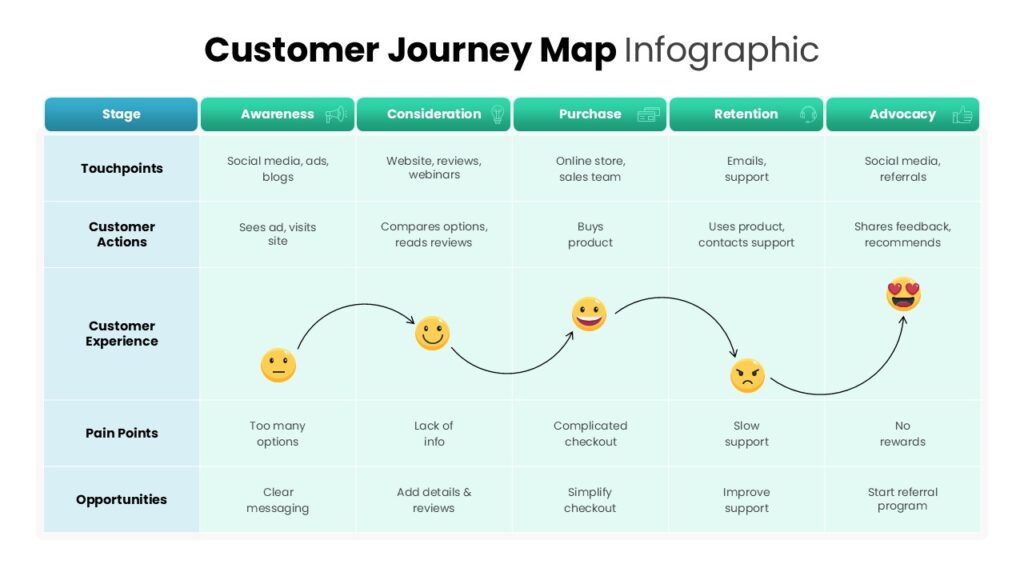
Best For: Marketing, UX, and customer experience teams
Understanding how customers interact with your business is essential for improving products and services.
A customer journey map template visually breaks down every stage of the customer experience, from awareness to purchase and beyond. It helps identify pain points and opportunities for improvement while making discussions more productive.
13. KPI Dashboard Template
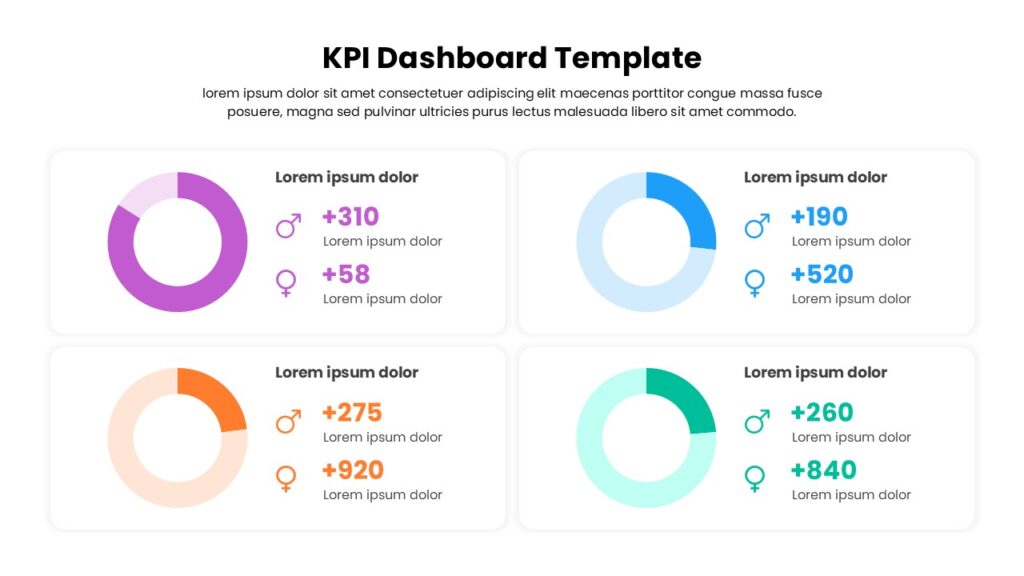
Best For: Business reporting and performance reviews
Dashboards are one of the easiest ways to present large amounts of data without overwhelming your audience.
A good KPI dashboard template combines charts, progress indicators, and key metrics into a single slide that executives can quickly understand.
I find these templates especially useful for monthly business reviews and leadership meetings.
14. Organizational Chart Template
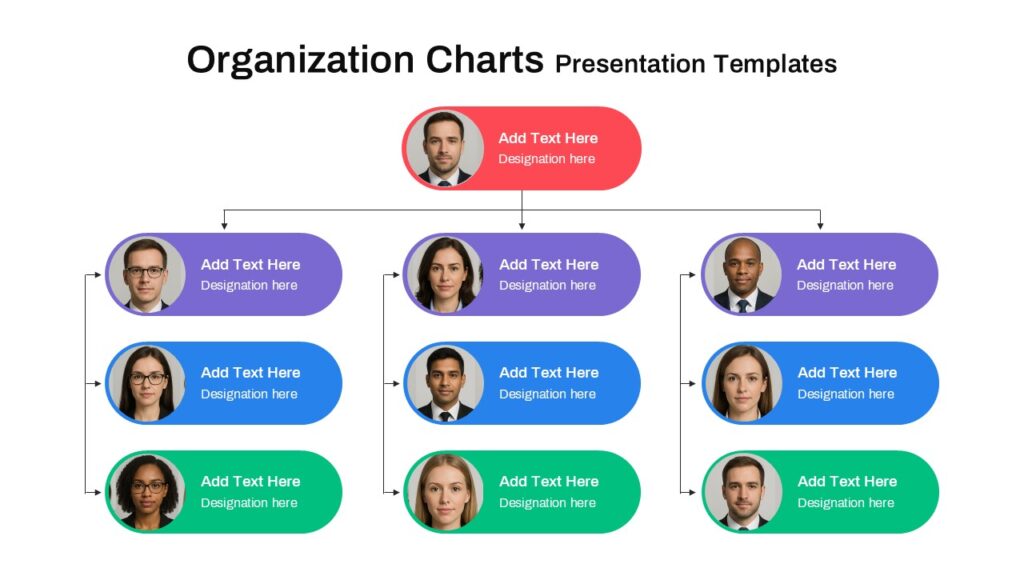
Best For: HR presentations and company introductions
When introducing a company or explaining reporting structures, an organizational chart is much easier to understand than a written list of job titles.
These templates make it simple to visualize departments, leadership teams, and reporting relationships while maintaining a clean and professional design.
15. Business Model Canvas Template
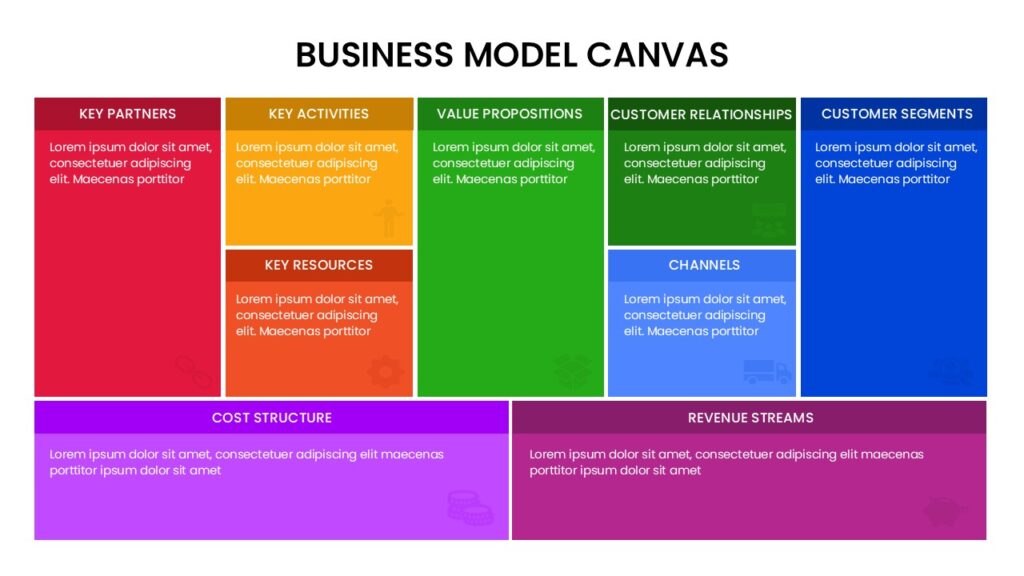
Best For: Strategic planning and entrepreneurship
The Business Model Canvas remains one of my favorite tools for brainstorming new business ideas.
Instead of spreading information across multiple slides, this template brings key elements such as customer segments, value propositions, revenue streams, and key resources together in a single visual framework.
It’s an excellent choice for workshops, startups, and business strategy sessions.
16. Risk Analysis Matrix Template
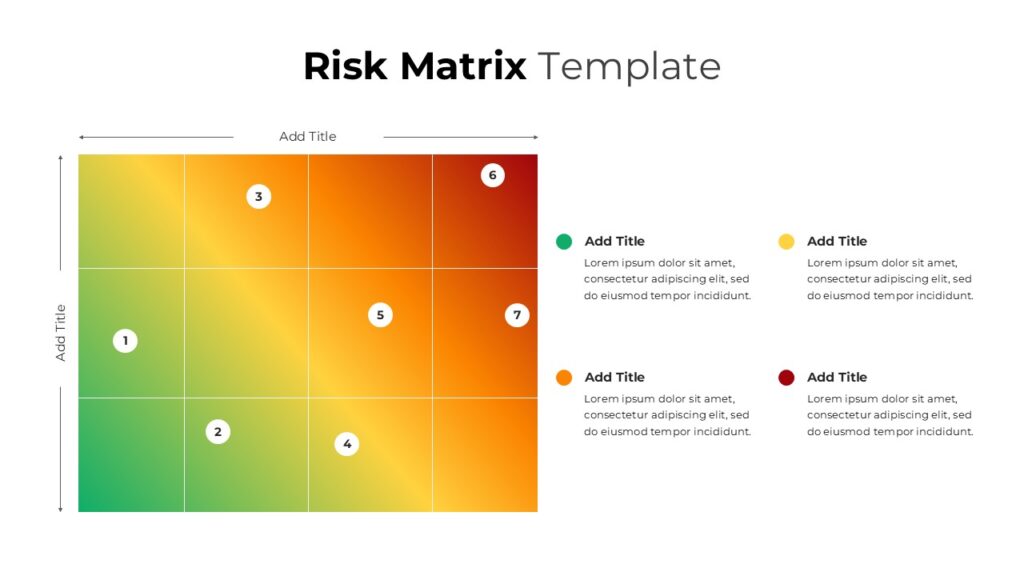
Best For: Project management and business planning
Every project involves risks, but communicating those risks clearly is often difficult.
A risk analysis matrix helps prioritize issues based on their likelihood and impact. Rather than discussing risks verbally, teams can immediately identify which items require the most attention.
This template works well for project managers, consultants, and operations teams.
17. Team Introduction Template

Best For: Company profiles and project kickoffs
People connect with people.
Whether you’re presenting to a new client or introducing a project team, a dedicated team slide helps build familiarity and trust.
I prefer templates that include professional photo placeholders, short biographies, roles, and contact information without making the slide feel crowded.
18. Comparison Table Template
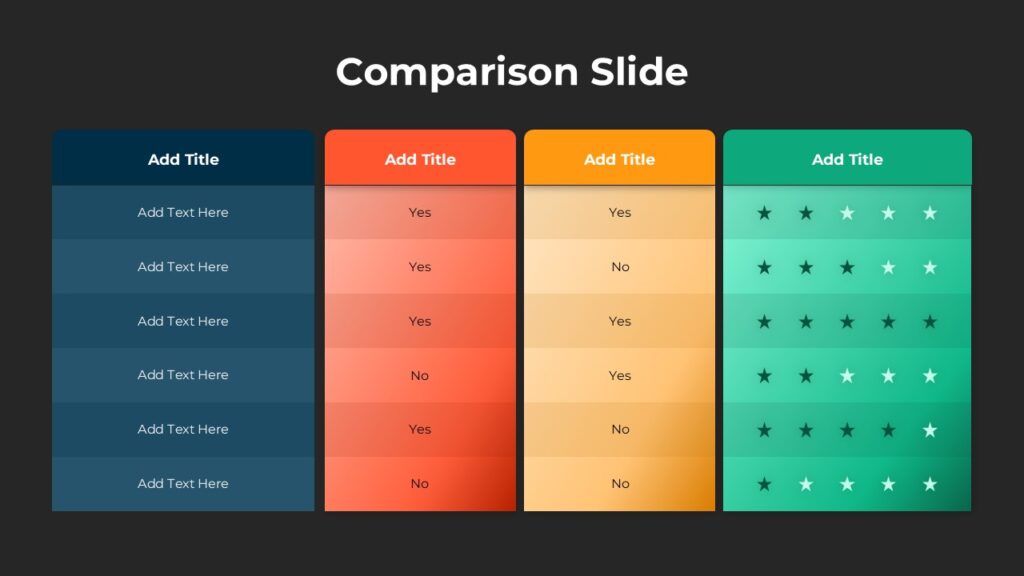
Best For: Product comparisons and decision-making presentations
Comparison slides are useful whenever your audience needs to evaluate different options.
Whether you’re comparing products, services, pricing plans, or software solutions, these templates present information in a format that’s easy to scan and understand.
A clean comparison table often communicates value more effectively than several paragraphs of explanation.
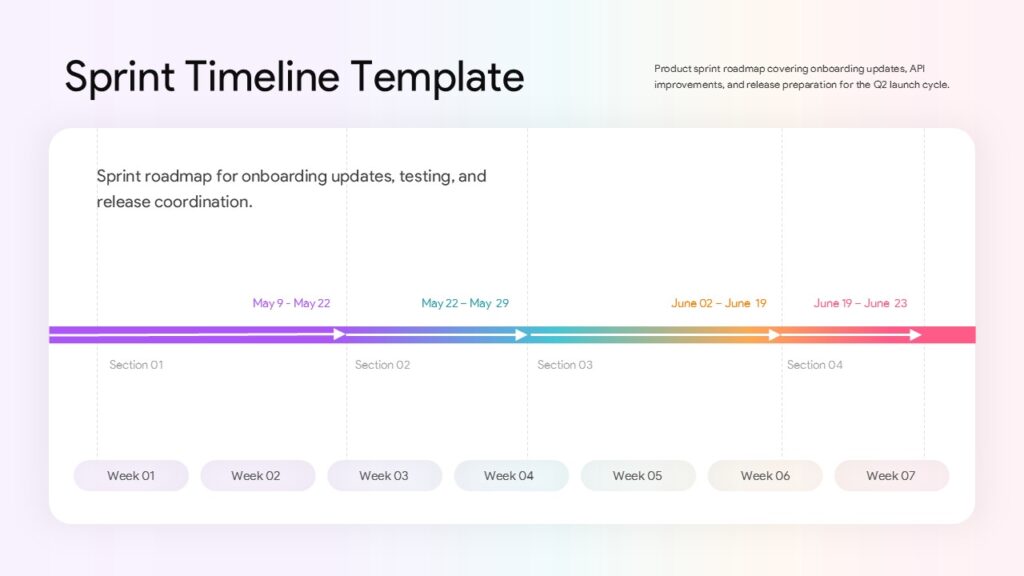
19. Timeline Infographic Template
Best For: Company history and milestone presentations
Unlike traditional timelines, infographic timelines use icons, illustrations, and visual markers to make chronological information more engaging.
They’re ideal for annual reports, business anniversaries, project milestones, and educational presentations where storytelling is important.
20. Executive Summary Presentation Template

Best For: Leadership meetings and board presentations
Busy executives rarely have time to review lengthy presentations.
An executive summary template helps communicate the most important insights on one or two concise slides. It typically includes objectives, highlights, recommendations, risks, and next steps.
If I know my audience has limited time, this is one template I always include in my presentation.
How to Choose the Right Google Slides Template
With so many presentation templates available, selecting the right one depends on your audience and the purpose of your presentation.
Here are a few questions I ask before choosing a template.
Who Will Be Watching?
An investor presentation requires a different design than a classroom lesson or a marketing report. Choose a template that matches your audience’s expectations.
What Story Are You Trying to Tell?
Some presentations focus on data, while others explain processes or persuade potential clients.
For example:
- Use timeline templates for project updates.
- Use infographic templates for research findings.
- Use pitch deck templates for startup presentations.
- Use company profile templates for client meetings.
- Use dashboard templates for performance reviews.
Does the Template Include the Right Slide Types?
Instead of counting the total number of slides, look at the variety of layouts included.
The most useful templates usually contain:
- Title slides
- Section dividers
- Timelines
- Process diagrams
- Charts
- Comparison tables
- Team slides
- Contact slides
These layouts are much more valuable than having dozens of nearly identical slides.
Tips for Creating Better Google Slides Presentations
A good template is only the starting point. The way you use it has a huge impact on your presentation.
Keep Slides Simple
Avoid filling every slide with paragraphs of text. Use concise headlines, short bullet points, and visuals that reinforce your message.
Maintain Consistent Branding
Use the same colors, fonts, and icon styles throughout your presentation. Consistency makes your slides look more professional and easier to follow.
Use High-Quality Visuals
Choose clear images, icons, and charts that support your content. Avoid blurry graphics or unnecessary decorative elements.
Prioritize Readability
Make sure your text is large enough to read from the back of a meeting room. Leave plenty of white space around important elements to prevent slides from feeling cluttered.
Practice Before Presenting
Even the best-designed presentation won’t be effective if the delivery feels rushed. Spend time rehearsing your presentation so you can speak naturally and confidently.
Conclusion
A great presentation begins with a clear message, but the right template helps you deliver that message with confidence. Instead of spending hours arranging layouts or adjusting design elements, you can focus on creating content that informs, persuades, or inspires your audience.
The templates featured in this guide cover a wide range of presentation needs, from startup pitch decks and business proposals to dashboards, timelines, company profiles, and marketing strategies. Choosing a template that matches your audience and objective makes it much easier to build presentations that look polished and communicate ideas effectively.
Whether you’re preparing for a client meeting, classroom presentation, project review, or executive briefing, investing a few minutes in selecting the right Google Slides template can save hours of design work later.
If you’re looking for professionally designed, fully editable templates, explore Slidestopia’s growing collection of Google Slides templates. With layouts for business, education, marketing, project management, and data visualization, you’ll find presentation designs that help you create engaging slides faster while maintaining a professional appearance.
Frequently Asked Questions
Where can I download Google Slides templates?
You can find Google Slides templates from presentation marketplaces, design platforms, and template libraries. Look for editable templates that include a variety of slide layouts suitable for your presentation type.
Are Google Slides templates editable?
Yes. Most professional templates allow you to edit colors, fonts, icons, images, charts, and layouts to match your branding and presentation needs.
Can I use PowerPoint templates in Google Slides?
In most cases, yes. Many modern PowerPoint templates are compatible with Google Slides, although a few advanced animations or effects may require minor adjustments.
What is the best Google Slides template for business presentations?
Business presentations usually benefit from clean, professional templates that include timelines, process diagrams, dashboards, comparison tables, and data visualization slides.
Which templates are best for students?
Students often benefit from infographic templates, timeline layouts, process diagrams, and educational presentation themes that make information easier to understand.
How many slides should a presentation have?
There isn’t a fixed number. Most presentations work well with 10 to 20 slides, depending on the topic and available presentation time.
How do I make my presentation look more professional?
Use consistent colors, readable typography, quality visuals, and a logical slide structure. Starting with a professionally designed template also helps create a polished presentation.
Can I collaborate with others in Google Slides?
Yes. One of Google Slides’ biggest advantages is real-time collaboration. Multiple team members can edit the same presentation simultaneously and leave comments without creating duplicate versions.
Are Google Slides templates suitable for business meetings?
Absolutely. Professional templates are designed for client presentations, sales meetings, executive reports, project updates, and strategic planning sessions.
What should I look for in a presentation template?
Choose templates with editable layouts, multiple slide types, modern typography, charts, timelines, process diagrams, and consistent design elements that fit your presentation goals.

Related Articles
-
 August 4th, 2026
15 Best PowerPoint Presentation Templates & Slides in 2026
Presentation Resources -
 May 8th, 2026
13 Alternatives for Slidesgo: Free Google Slides Themes & PowerPoint Templates
Presentation Resources -
 May 8th, 2026
Best Color Schemes for PowerPoint Presentations: Choose the Right Palette
Presentation Resources